3.6 Robot Interaction Procedures Guide
3.6.1 Robot Interaction Precautions
- During voice-controlled walking or upper-limb motion commands, keep at least a 1-meter radius clear around the robot.
- During voice-controlled walking or motion execution, pay close attention to robot safety to avoid falling.
- It is recommended to perform motion commands on hard flooring instead of soft surfaces such as grass or carpets.
- For customized speech corpus configuration, contact FF EAI Robotic technical support.
3.6.2 Current Version (External Microphone)
- Only external microphone interaction is currently supported.
- Connect and pair the packaged external microphone.
- After the robot is connected to the network, turn on the microphone to activate voice interaction.
- No wake-up word is required for the external microphone version.
3.6.3 Upcoming Version (Built-in Microphone, OTA Update)
- The built-in microphone interaction feature will be introduced through a future OTA update.
- After the update, users can manually switch between the built-in and external microphones in the app.
- When using the built-in microphone, the robot must be activated with the wake word
Hey, Master.
3.6.3.1 Voice Chat
- Everyday topics such as news, weather, and surrounding environment.
- FF Master Classic topics including personality, preferences, and product details.
- Knowledge-base topics depending on system configuration.
- Supports multi-language interaction including English, Chinese, Spanish, French, and Italian.
3.6.3.2 Multimodal Interaction
- Environment and object Q&A.
- Detection of the number of people and recognition of clothing, facial expressions, or gender.
- Customized guest greeting with future face registration support.
3.6.3.3 Voice Command Actions and Expressions
Voice commands can trigger:
- Upper-limb and hand actions
- Head movements
- Walking actions
- Waist movements
- Expressive actions
- Facial screen expressions
3.6.3.4 Head Pat Interaction
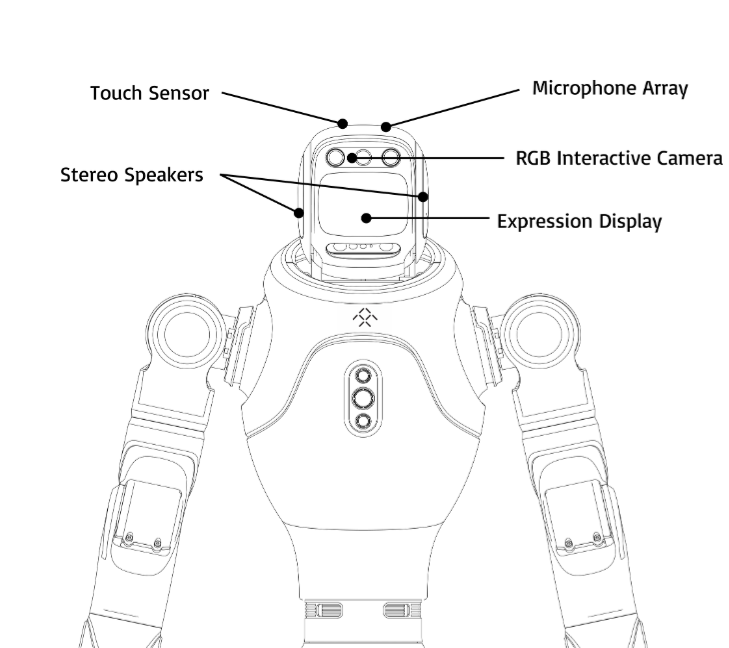
Gently touch the head touch sensor. The robot will nod pleasantly and respond with: Friendly touch signal detected — energy +100%!
3.6.3.5 Robot Interaction Customization
Knowledge base customization, character profile, wake words, and voice tone selection are under development and will be supported through the future Intellectual & Interactive Platform.
3.6.4 External Microphone Pairing and Connection
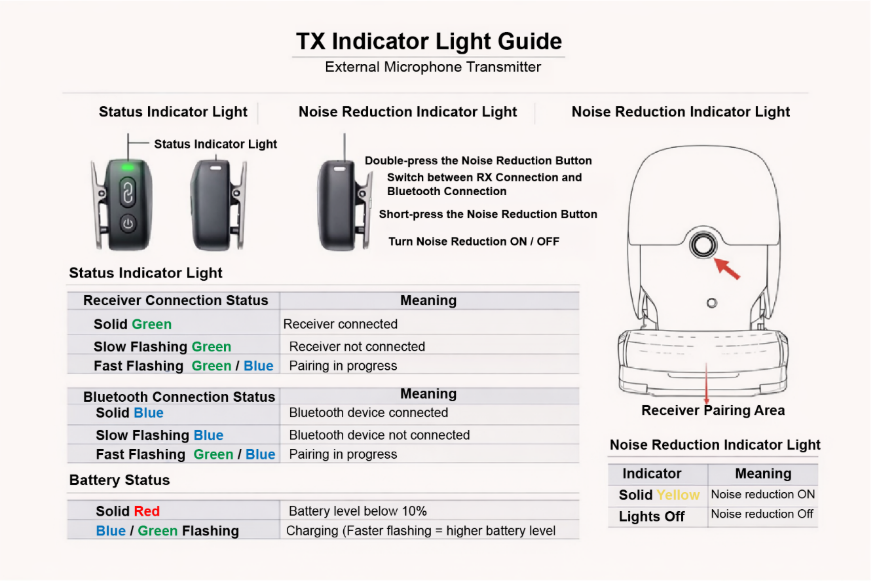
- Press the power button on the microphone to turn it on.
- The external microphone receiver is integrated into the robot head, and the microphone will automatically pair with the robot.
- A solid green light indicates successful connection.
- If pairing fails, restart the robot. If it still fails, use the pairing hole on the back of the robot head and the microphone pairing button to complete manual pairing.